How to Convert HEIC to JPG on Android
Last updated: May 2026
Got HEIC photos from an iPhone—or saved as HEIC on a newer Android phone—and need JPG? You do not always need a special app. Often the simplest fix is the browser on your phone.
Two ways that actually work
Use HEIC.Best in Chrome (recommended)
Open our HEIC to JPG page in Chrome on your Android phone, tap to select photos from your gallery, convert, then download the JPGs. Processing stays on your device—nothing is uploaded for conversion.
- 1 Open Chrome and go to HEIC.Best’s HEIC to JPG converter
- 2 Tap the upload area and pick your .heic files
- 3 Start conversion, then download each JPG or the ZIP
Share to a PC, then convert there
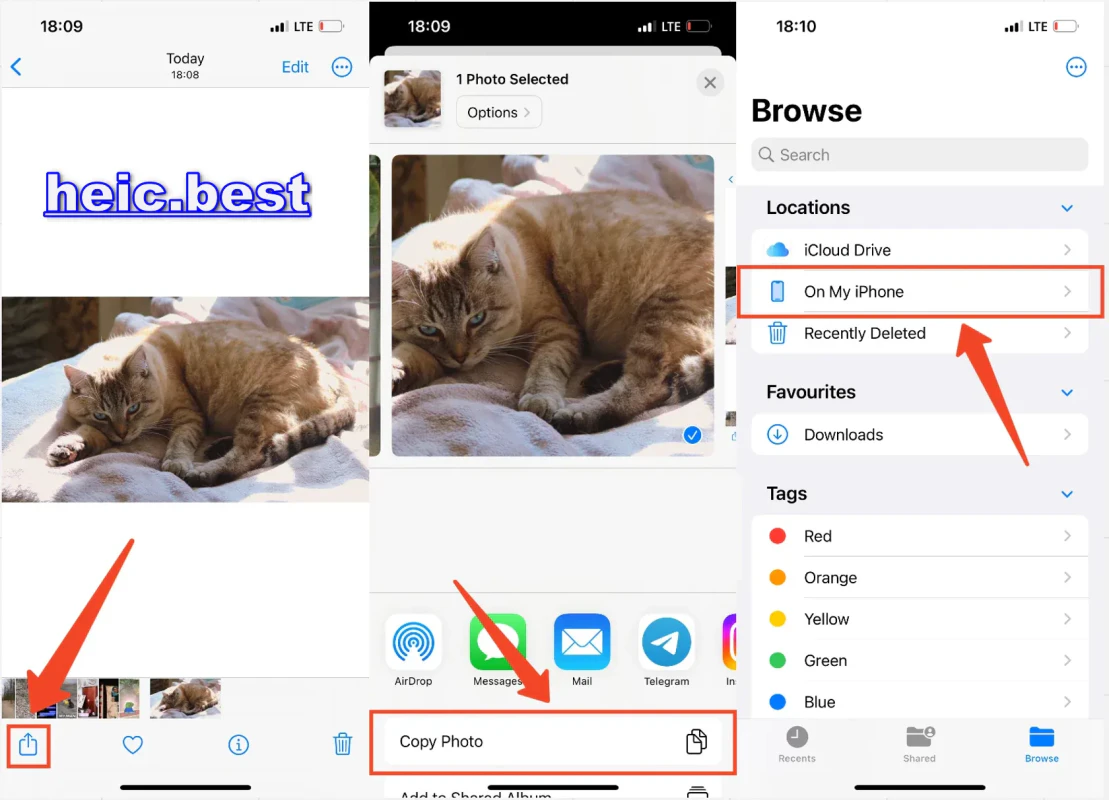
If the batch is large or your phone feels slow, AirDrop/email/USB the HEIC files to a computer and use the same browser tool on desktop—it handles more files at once.
Android HEIC FAQ
Does Android open HEIC natively?
Some newer phones do; many still show a blank preview or ask you to download a viewer. Converting to JPG avoids the guesswork.
Can I convert HEIC to JPG on Android without an app?
Yes—use a modern mobile browser and an online converter that runs locally, like HEIC.Best. No Play Store app required.
Will quality drop?
JPG is compressed, but at default settings most phone-sized photos look the same to the naked eye. Slide quality up if you plan to print.
Quick takeaway
For one-off fixes, Chrome plus a browser converter beats hunting for sketchy ‘HEIC opener’ apps. For big batches, move files to a PC and convert there.
Convert on your phone now
Free HEIC to JPG in the browser—works on Android and iPhone.
Open HEIC to JPG converter
No comments yet